> ## Documentation Index
> Fetch the complete documentation index at: https://resources.flare-studio.xyz/llms.txt
> Use this file to discover all available pages before exploring further.
# Update Your App
> Deploy updates, fixes, and new features to your published apps
Keep your app fresh with regular updates. Users can manually update installed apps to get the latest features and fixes.
## Why Update Your App?
Regular updates help you:
Address issues and improve stability
Introduce new functionality based on feedback
Optimize code and reduce resource usage
Ensure compatibility with new Exe 6 builds
## Update Process
Make your changes and test thoroughly. Once ready, [prepare your app](/apps/prepare) again with the updated components.
Ensure your app is fully tested before proceeding with the update.
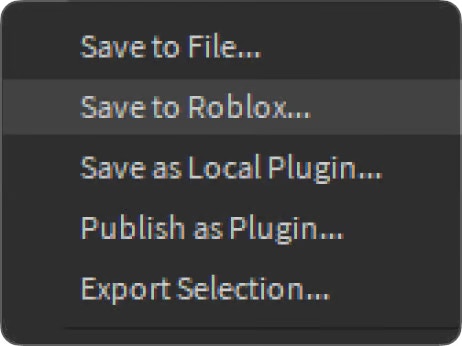
Right-click the **Exe6Folder** and select **"Save to Roblox..."**
 This is the same process as the initial publish, but we'll use the overwrite feature.
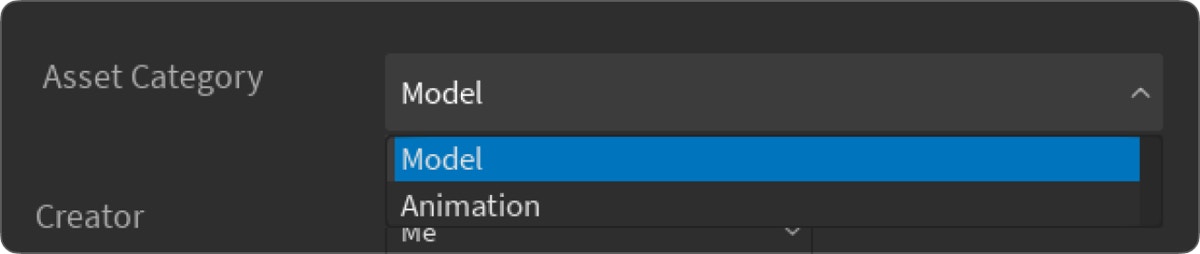
When the window appears, select **"Model"** for the Asset Category.
This is the same process as the initial publish, but we'll use the overwrite feature.
When the window appears, select **"Model"** for the Asset Category.
 On the bottom-left of the window, click:
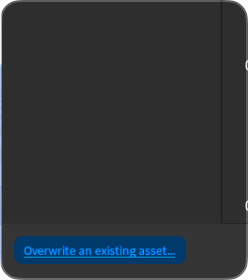
**"Overwrite an existing asset..."**
On the bottom-left of the window, click:
**"Overwrite an existing asset..."**
 Make sure you select the correct asset to overwrite. This action cannot be undone!
A list of your Roblox assets will appear. Find and click the **App Asset** you previously uploaded, then click **"Save"**.
Your app is now updated on Roblox!
## Update App Metadata (Optional)
You can also update your app's name and description:
1. Navigate to the Roblox Create website
2. Find your app asset
3. Click the **Configure** link
4. Update the **Name** and **Description** fields
5. Click **"Save Changes"**
This gives you full control over your app's presentation in the library.
## Best Practices
### Track Your Changes
Maintain a version history for your app:
```lua Example Version Tracking theme={null}
-- In your app's main module
local AppInfo = {
Name = "MyAwesomeApp",
Version = "1.2.0",
LastUpdated = "2025-10-26",
Changes = {
"Fixed crash when opening settings",
"Added dark mode support",
"Improved performance by 30%"
}
}
```
Use semantic versioning (major.minor.patch) to communicate the type of update.
### Communicate Updates
Always document what changed in each update:
* **Major updates** (2.0.0) - Breaking changes or major features
* **Minor updates** (1.1.0) - New features, backwards compatible
* **Patch updates** (1.0.1) - Bug fixes and small improvements
Post changelogs in your Discord or app documentation.
### Test Before Releasing
Before updating:
Test all existing features to ensure nothing broke
Thoroughly test all new additions
Verify compatibility with current Exe 6 builds
Check that performance hasn't degraded
### Keep Users Informed
* Announce updates in Discord
* Highlight major new features
* Provide migration guides for breaking changes
* Respond to user feedback quickly
Stay connected with your users
## Update Frequency
**Immediate**
Deploy ASAP for crashes or security issues
**Monthly**
Regular updates with new features
**As Needed**
Performance improvements and minor fixes
## User Update Experience
Users can update apps in two ways:
Users navigate to their installed apps and click **"Check for Updates"**
If an update is available, they'll see an update prompt
Users click **"Update"** to install the latest version
Updates are not automatic. Users must manually update their installed apps.
## Troubleshooting
* Wait 5-10 minutes for Roblox cache to update
* Verify you overwrote the correct asset
* Check that the asset ID hasn't changed
* Ensure you're logged into the correct Roblox account
* Verify you have permission to edit the asset
* Try refreshing Roblox Studio
* Immediately roll back to previous version
* Test the update more thoroughly
* Post a notice in Discord about the issue
***
## Continuous Improvement
Keep your app competitive and valuable:
Review guidelines to ensure compliance with each update
***
Make sure you select the correct asset to overwrite. This action cannot be undone!
A list of your Roblox assets will appear. Find and click the **App Asset** you previously uploaded, then click **"Save"**.
Your app is now updated on Roblox!
## Update App Metadata (Optional)
You can also update your app's name and description:
1. Navigate to the Roblox Create website
2. Find your app asset
3. Click the **Configure** link
4. Update the **Name** and **Description** fields
5. Click **"Save Changes"**
This gives you full control over your app's presentation in the library.
## Best Practices
### Track Your Changes
Maintain a version history for your app:
```lua Example Version Tracking theme={null}
-- In your app's main module
local AppInfo = {
Name = "MyAwesomeApp",
Version = "1.2.0",
LastUpdated = "2025-10-26",
Changes = {
"Fixed crash when opening settings",
"Added dark mode support",
"Improved performance by 30%"
}
}
```
Use semantic versioning (major.minor.patch) to communicate the type of update.
### Communicate Updates
Always document what changed in each update:
* **Major updates** (2.0.0) - Breaking changes or major features
* **Minor updates** (1.1.0) - New features, backwards compatible
* **Patch updates** (1.0.1) - Bug fixes and small improvements
Post changelogs in your Discord or app documentation.
### Test Before Releasing
Before updating:
Test all existing features to ensure nothing broke
Thoroughly test all new additions
Verify compatibility with current Exe 6 builds
Check that performance hasn't degraded
### Keep Users Informed
* Announce updates in Discord
* Highlight major new features
* Provide migration guides for breaking changes
* Respond to user feedback quickly
Stay connected with your users
## Update Frequency
**Immediate**
Deploy ASAP for crashes or security issues
**Monthly**
Regular updates with new features
**As Needed**
Performance improvements and minor fixes
## User Update Experience
Users can update apps in two ways:
Users navigate to their installed apps and click **"Check for Updates"**
If an update is available, they'll see an update prompt
Users click **"Update"** to install the latest version
Updates are not automatic. Users must manually update their installed apps.
## Troubleshooting
* Wait 5-10 minutes for Roblox cache to update
* Verify you overwrote the correct asset
* Check that the asset ID hasn't changed
* Ensure you're logged into the correct Roblox account
* Verify you have permission to edit the asset
* Try refreshing Roblox Studio
* Immediately roll back to previous version
* Test the update more thoroughly
* Post a notice in Discord about the issue
***
## Continuous Improvement
Keep your app competitive and valuable:
Review guidelines to ensure compliance with each update
***